How to Check TRON Transactions in TronScan | Complete Guide for Users
Learn how to check transactions in TronScan with this complete guide. Step-by-step instructions to track TRON transactions, verify transfers, and analyze blockchain data.
How to Check Transactions in TronScan
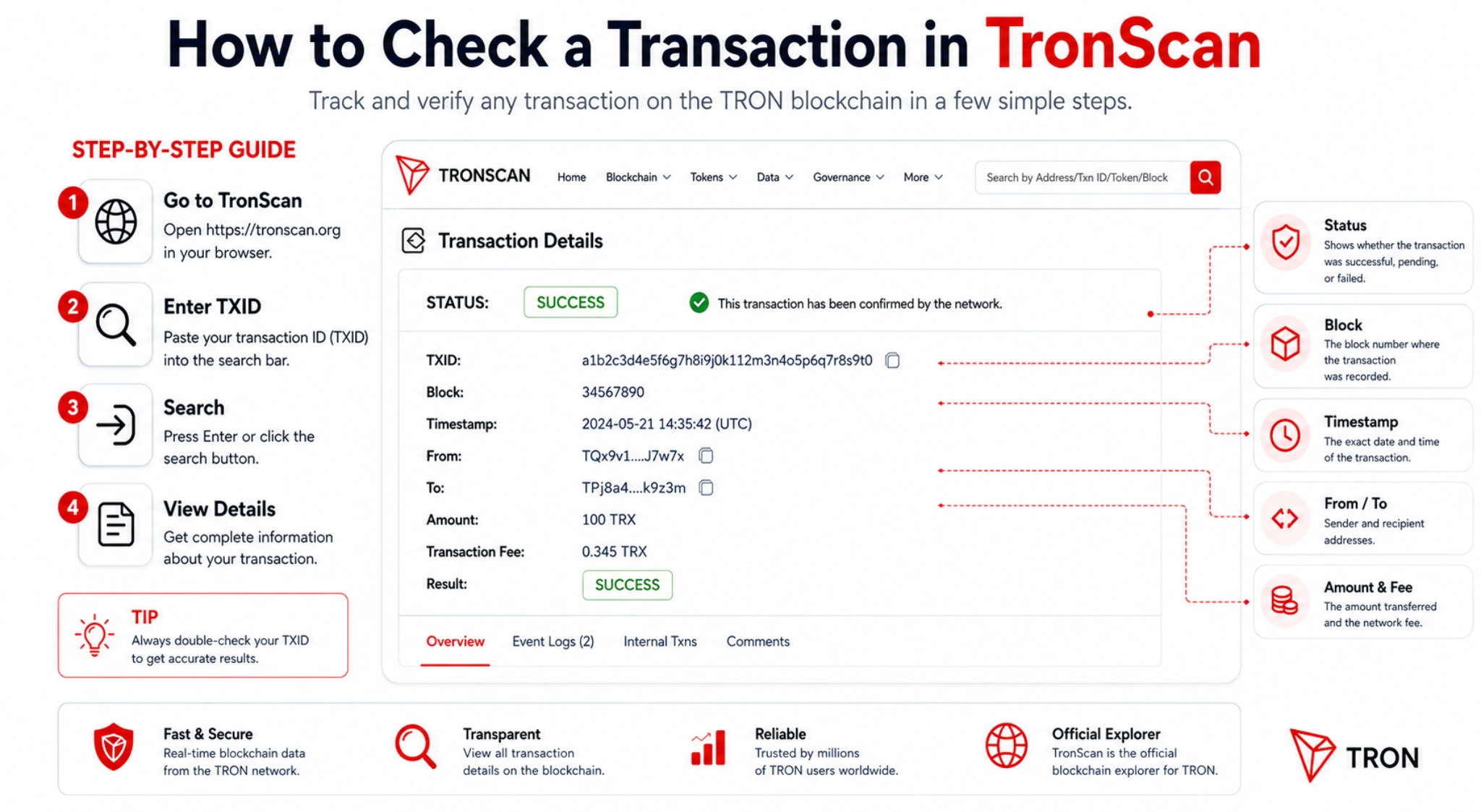
TronScan is the official blockchain explorer for the TRON network, allowing users to track transactions, monitor wallet activity, and analyze blockchain data in real time. Whether you are a beginner or an experienced crypto user, understanding how to check transactions in TronScan is essential for transparency and security.
What Is TronScan?
TronScan is a web-based tool that provides detailed information about TRON blockchain transactions. It works similarly to explorers on other blockchains, enabling users to verify transfers, check balances, and view smart contract interactions.
Why You Should Check Transactions in TronScan
There are several reasons to verify transactions using TronScan:
Confirm that a transaction was successfully processed Track incoming or outgoing payments Monitor wallet activity Verify smart contract execution Ensure network transparency Step-by-Step Guide to Checking Transactions in TronScan 1. Open TronScan
Go to the official TronScan website.
2. Use the Search Bar
You can search using:
Transaction ID (TXID) Wallet address Block number 3. Enter Transaction ID
Paste your TXID into the search field and press Enter.
4. Analyze Transaction Details
After searching, you will see detailed information such as:
Transaction status (confirmed or pending) Sender and receiver addresses Amount transferred Transaction fee Block number and timestamp Understanding TronScan Transaction Data
When checking a transaction, pay attention to:
Status – Shows whether the transaction is successful Confirmations – Number of blocks confirming the transaction Energy and Bandwidth – TRON network resource usage Smart Contract Data – If the transaction involves a contract How to Track Wallet Activity
To monitor a wallet:
Enter the wallet address in TronScan View transaction history Analyze incoming and outgoing transfers
This is useful for traders, investors, and developers.
Common Issues When Checking Transactions Transaction not found – May not be confirmed yet Pending status – Network congestion or delay Incorrect TXID – Double-check copied data Tips for Using TronScan Efficiently Always copy TXID directly from your wallet Bookmark frequent addresses Use filters for faster navigation Check timestamps to verify timing Conclusion
Learning how to check transactions in TronScan is crucial for anyone using the TRON blockchain. It ensures transparency, helps verify transfers, and gives you full control over your crypto activity. By following the steps above, you can easily track and analyze any transaction with confidence.